Disk fragmentation is a common issue that can significantly hinder your computer’s performance. Over time, as files are created, modified, and deleted, they become scattered across the hard drive. This fragmentation leads to longer read and write times because the disk’s read/write head must move more frequently to access the fragmented pieces of each file. Consequently, users may notice sluggish performance, longer boot-up times, and delays in loading applications. Understanding the causes and effects of disk fragmentation, along with proper maintenance techniques, can help restore your computer’s speed.
What is Disk Fragmentation?
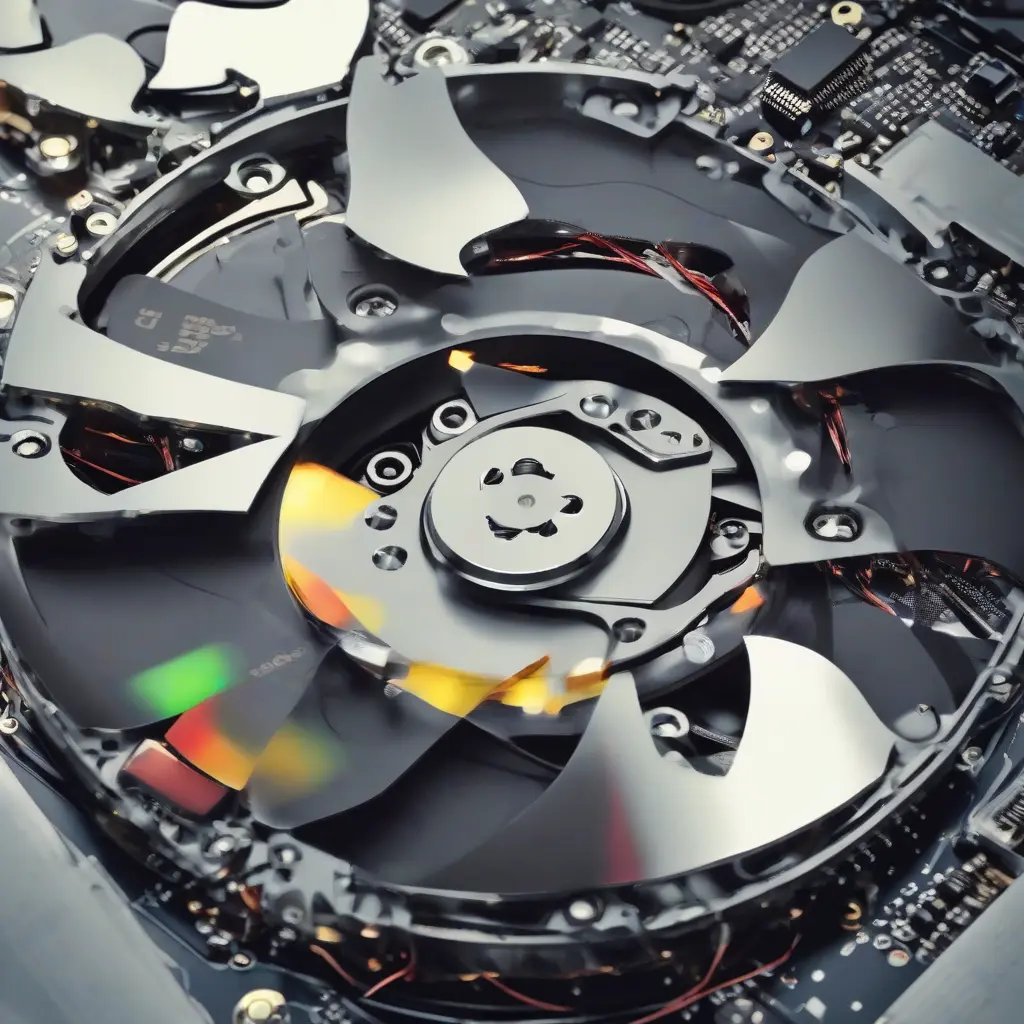
Disk fragmentation refers to the condition when files are divided into pieces and stored in non-contiguous sectors of a hard drive. As files grow or are modified, they can become split into fragments, requiring the disk’s read/write head to travel more distances to read the complete file. This inefficiency increases the time it takes for the system to retrieve files, contributing to a decrease in overall performance. Fragmentation is commonly observed in traditional hard disk drives (HDDs), where the physical limitations of the disk exacerbate the issue.
Why Does Disk Fragmentation Occur?
Disk fragmentation can occur for several reasons, primarily related to how files are managed on a hard drive. When files are created or deleted, the operating system finds available space for new data, which may not be contiguous. This leads to fragments being stored in different locations on the disk. Additionally, frequent installation and uninstallation of software can accelerate fragmentation, as these processes often involve changes to file sizes and structures. In everyday use, a range of small modifications can spiral into substantial fragmentation over time.
Symptoms of Fragmented Disks
The symptoms of disk fragmentation can manifest in various ways, noticeably affecting a computer’s performance. Users may experience slower boot times, prolonged application launches, and lag during file transfers. In severe cases, the system may freeze or crash due to the difficulty in accessing fragmented files. Regularly monitoring for these symptoms can help users identify when fragmentation becomes an issue, allowing for timely actions to rectify it. Understanding these warning signs is crucial for maintaining optimal computer speed.
How Disk Fragmentation Affects Speed
Disk fragmentation can severely impact a computer’s speed due to the increased effort required by the hard drive to piece together fragmented files. As the read/write head moves from one fragment to another, it takes longer to access complete files, which leads to delays in data retrieval and processing. This can result in sluggish performance, especially when multiple applications are running simultaneously. In modern computing environments, where efficiency is paramount, understanding and mitigating fragmentation is essential for maintaining fast and responsive systems.
How to Check for Disk Fragmentation
To check for disk fragmentation, users can utilize built-in tools provided by various operating systems. For Windows users, the Disk Defragmenter tool can analyze the status of the hard drive and provide insights into how fragmented it is. Users can access this utility through the Control Panel or by searching for ‘defragment’ in the start menu. macOS systems have different mechanisms, as they employ a file system that minimizes fragmentation. Regularly checking for fragmentation will help maintain optimal performance.
Defragmentation Tools Available
There are several defragmentation tools available to help users address disk fragmentation. Most operating systems come with built-in utilities, such as Windows’ Disk Defragmenter and macOS’s maintenance systems, which automatically manage fragmentation. Third-party tools also provide more advanced features, often allowing for customized defragmentation settings. Each tool may offer different capabilities, so it’s worth researching options to find the best fit for individual needs. Utilizing these tools regularly can restore drive performance effectively.
Manual Defragmentation Process
The manual defragmentation process involves using your operating system’s built-in tool to organize fragmented files. For Windows machines, you can access the Disk Defragmenter through the Control Panel, select the drive you wish to defragment, and initiate the process. While the program is running, it’s advisable to avoid heavy computer use to allow the defragmentation to complete more efficiently. In macOS, you generally do not have to manually defragment, as the system is designed to handle fragmentation automatically.
Best Practices for Preventing Fragmentation
To prevent fragmentation from occurring, users can adopt several best practices. Maintaining a clean hard drive by regularly deleting unnecessary files, uninstalling unused programs, and organizing data can significantly reduce fragmentation. Additionally, regularly using the defragmentation tools available can keep the drive optimized. Users should also consider upgrading to solid-state drives (SSDs), which are less susceptible to fragmentation compared to traditional HDDs. Combining these strategies will enhance performance and longevity.
When to Seek Professional Help
In some cases, disk fragmentation may lead to more severe issues that require professional assistance. If defragmentation tools do not yield improvements, or if the system exhibits persistent lag and crashes, it may indicate underlying hardware or software problems. Users experiencing unusual noises from the hard drive or frequent error messages should consult a professional technician. This can prevent data loss and ensure that any necessary repairs or replacements are addressed promptly.
Conclusion
In conclusion, disk fragmentation can significantly impact a computer’s speed, leading to frustrating performance issues over time. Regular monitoring and maintenance are essential for minimizing these effects. By understanding disk fragmentation, its causes, and implementing effective solutions, users can maintain optimal computer performance. Being proactive in defragmentation practices not only enhances speed but also prolongs the life of the hard drive, ensuring smooth operation for everyday tasks.